Veja mais sobre Layout CSS – Alinhamento horizontal e vertical ou CSS Layout – Horizontal & Vertical Align.
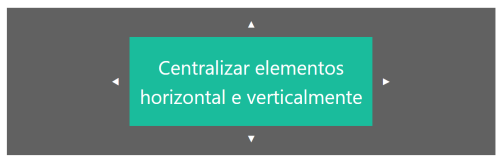
Para centralizar horizontalmente um elemento de bloco (como <div>), use margin: auto;
Definir a largura do elemento impedirá que ele se estique até as bordas do seu contêiner.
O elemento ocupará a largura especificada e o espaço restante será dividido igualmente entre as duas margens:

<!DOCTYPE html>
<html>
<head>
<style>
.center {
  margin: auto;
  width: 60%;
  border: 3px solid #73AD21;
  padding: 10px;
}
</style>
</head>
<body>

<h2>Center Align Elements</h2>
<p>To horizontally center a block element (like div), use margin: auto;</p>

<div class="center">
  <p><b>Note: </b>Using margin:auto will not work in IE8, unless a !DOCTYPE is declared.</p>
</div>

</body>
</html>
Nota: O alinhamento central não terá efeito se a widthpropriedade não estiver configurada (ou configurada para 100%).
Alinhar ao centro o texto
Para centralizar apenas o texto dentro de um elemento, use text-align: center;

Exemplo
.center {
text-align: center;
border: 3px solid green;
}
Centralizar uma imagem
Para centralizar uma imagem, defina as margens esquerda e direita para autotransformá-la em um blockelemento:
<!DOCTYPE html>
<html>
<head>
<style>
img {
  display: block;
  margin-left: auto;
  margin-right: auto;
}
</style>
</head>
<body>

<h2>Center an Image</h2>
<p>To center an image, set left and right margin to auto, and make it into a block element.</p>

<img src="https://www.joemaster.com.br/tutoriais/wp-content/uploads/2020/06/estrutura-basica-de-um-documento-css-1-300x169.jpg" alt="Paris" style="width:40%">

</body>
</html>
Alinhar à esquerda e à direita – usando a posição
Um método para alinhar elementos é usar position: absolute;:

Com o padding
.center {

padding: 70px 0;

border: 3px solid green;

}
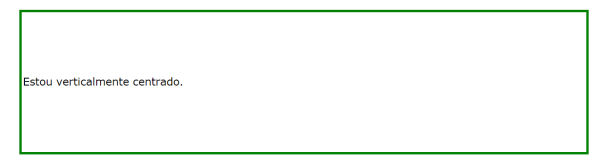
Para centralizar tudo
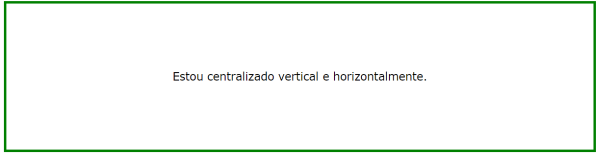
Veja o código
<!DOCTYPE html>
<html>
<head>
<style>
.center {
  padding: 70px 0;
  border: 3px solid green;
  text-align: center;
}
</style>
</head>
<body>

<h2>Centering</h2>
<p>In this example, we use padding and text-align to center the div element vertically and horizontally:</p>

<div class="center">
  <p>I am vertically and horizontally centered.</p>
</div>

</body>
</html>
Centralizar verticalmente – usando a altura da linha
Outro truque é usar a line-heightpropriedade com um valor igual à heightpropriedade:
<!DOCTYPE html>
<html>
<head>
<style>
.center {
  line-height: 200px;
  height: 200px;
  border: 3px solid green;
  text-align: center;
}

.center p {
  line-height: 1.5;
  display: inline-block;
  vertical-align: middle;
}
</style>
</head>
<body>

<h2>Centering</h2>
<p>In this example, we use the line-height property with a value that is equal to the height property to center the div element:</p>

<div class="center">
  <p>I am vertically and horizontally centered.</p>
</div>

</body>
</html>
ou
<!DOCTYPE html>
<html>
<head>
<style>
.center {
  height: 200px;
  position: relative;
  border: 3px solid green;
}

.center p {
  margin: 0;
  position: absolute;
  top: 50%;
  left: 50%;
  -ms-transform: translate(-50%, -50%);
  transform: translate(-50%, -50%);
}
</style>
</head>
<body>

<h2>Centering</h2>
<p>In this example, we use positioning and the transform property to vertically and horizontally center the div element:</p>

<div class="center">
  <p>I am vertically and horizontally centered.</p>
</div>

</body>
</html>
Também pode se usar o flexbox para o mesmo resultado
<!DOCTYPE html>
<html>
<head>
<style>
.center {
  display: flex;
  justify-content: center;
  align-items: center;
  height: 200px;
  border: 3px solid green;
}
</style>
</head>
<body>

<h1>Flexbox Centering</h1>

<p>A container with both the justify-content and the align-items properties set to <em>center</em> will align the item(s) in the center (in both axis).</p>

<div class="center">
  <p>I am vertically and horizontally centered.</p>
</div>

</body>
</html>
<< Anterior Layout CSS – display: inline-block

Deixe um comentário